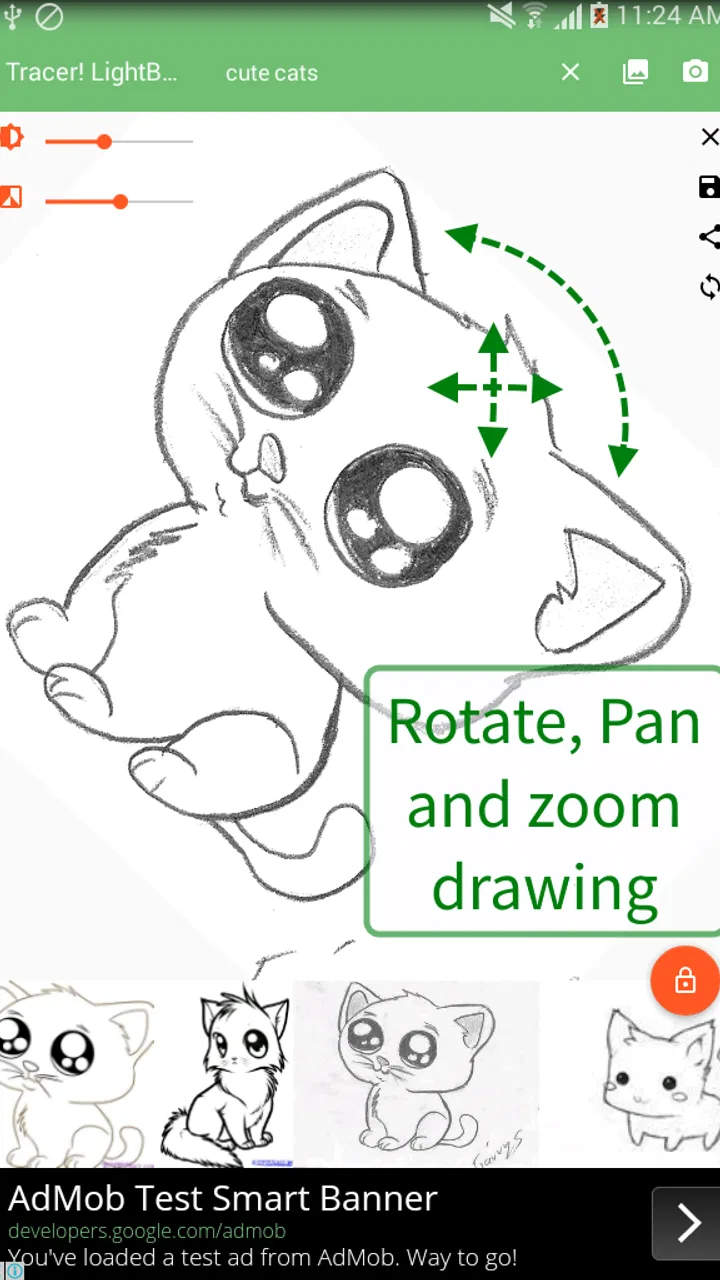
Tracer! Lightbox tracing app
- 4.1
- Rating
- 500.00K
- Installs
- Free
- Price

 Analysis by App-foxy
I spent time with Tracer! as a simple drawing aid rather than treating it like a full digital art studio. That distinction matters. This is a free Art & Design app from Angel Koh, built around a lightbox and tracing workflow, with search included to help you find reference material. If you enjoy sketching from real images, practicing proportions, or transferring a design onto paper, its focused approach can be genuinely useful.
My first impression was that the app is easier to understand than many larger drawing tools. There is no need to learn a crowded collection of brushes, layers, filters, or animation panels before making progress. The central idea is direct: choose something to work from, position it, and use the screen as a guide while drawing. That simplicity is also the reason I would not recommend it to everyone. People looking for a complete illustration workspace will find the experience deliberately limited.
How Tracer! fits into a real drawing routine
The app belongs to the practical side of mobile art tools. Instead of replacing pencils, pens, or a sketchbook, it supports them. I found it most natural to place a sheet over a bright phone or tablet display and use the visible image as a guide. The result depends heavily on the physical setup, the type of paper, and how carefully the device is handled, so this is not the same as drawing directly inside a sophisticated canvas.
You May Also Like

 Blood Strike: 2.5 Anniversary
Blood Strike’s Loadouts Turn Every Drop Into a Tactical Gamble
A close look at Blood Strike’s custom loadouts: how fast access to signature weapons reshapes its battle royale rhythm, rewards preparation, and narrows the gap between fights.

 Pandora - Music & Podcasts
Pandora’s Music Is Easy to Start, but Harder to Recover
Pandora’s strength is its low-effort path from a seed to a station. Its weak spot is how much confidence it asks you to place in connection, setup, and quiet recovery.

 8 Ball Pool
8 Ball Pool Is Built on Rivalries, Rematches, and Routine
A close look at the rivalries, rematches, shared routines, and unanswered safety questions that turn a quick pool match into a persistent mobile community.

 Samsung Music
Samsung Music’s Quiet Strength Is Playing What You Already Own
Its reach comes less from spectacle than from dependable access to a personal library. That simplicity is both the app’s strongest retention engine and its ceiling.

 AccuWeather: Weather Radar
AccuWeather Review: A Quick, Clear Forecast for Everyday Decisions
For everyday plans, the best forecast is the one you can understand quickly. AccuWeather makes rain timing, radar, and local conditions easy to act on, with a few trade-offs.

 Hill Climb Racing
Why Hill Climb Racing Still Turns Crashes Into One More Run
A tiny car, a bumpy hill and one more upgrade: Hill Climb Racing keeps resurfacing because its simple chaos makes every near-miss feel personal.
More From Our News Desk



That makes it particularly approachable for beginners. Someone learning to draw a face, a leaf, a logo-like shape, or a small character can concentrate on observing outlines and proportions instead of trying to invent every line from memory. It also works for a casual creative session when I want a quick reference without opening a separate browser, saving an image, and switching repeatedly between apps.
The built-in search is an important part of that convenience. I can look for a subject inside the same utility instead of preparing a reference library in advance. This is helpful when the goal is practice rather than a carefully planned finished illustration. A quick search for a flower, animal, object, or pose can turn the app into a small on-demand reference station.
Still, search should be treated as a starting point, not as a guarantee of an ideal drawing source. A reference that looks clear on a normal screen may become awkward when used beneath paper. Fine details, soft shading, and complicated backgrounds can make tracing confusing. I get better results by choosing images with a strong silhouette and a limited number of important lines.
A useful workflow for paper sketches
My preferred routine is to decide on the final paper size before opening the reference. I then select an image with a clear outline, adjust its position so the main subject sits comfortably beneath the page, and avoid starting with a highly detailed picture. This small preparation step prevents a common mistake: choosing an attractive image that contains too much information to be useful as a tracing guide.
For a child practicing basic shapes, I would use bold, uncomplicated subjects and keep the session short. For an adult working on a handmade card or a decorative sketch, I would search for a single object rather than a complete scene. The app becomes more effective when I use it to solve one drawing problem at a time, such as getting the curve of a vase right or transferring a simple outline onto heavier paper.
One less obvious advantage is that tracing can be used as an observation exercise rather than a shortcut. I can trace the first version, hide the reference, and then try to redraw the same form from memory. That turns the lightbox workflow into a simple way to study proportion. The app does not need to provide a lesson plan for this approach to work; the value comes from changing how I use the reference.
Another practical tip is to begin with the largest shapes and postpone small details. When I trace every tiny feature immediately, the drawing can become stiff and the reference can dominate the process. Blocking the silhouette first gives me a chance to check whether the whole subject fits on the page. Only after that would I add interior lines or texture.
What the search feature changes
Having search inside the app reduces friction, especially for spontaneous practice. I do not have to leave the drawing utility simply to locate a new subject. That can make a difference when I am working with a child who wants to draw a particular animal or when I need a quick object reference for a craft project.
At the same time, the convenience encourages quick selection, and quick selection is not always good selection. I would spend a few seconds judging the reference before placing paper over the display. Look for a readable outline, a sensible orientation, and enough empty space around the subject. If the image is visually busy, searching again is usually faster than trying to rescue a poor tracing setup.
This is also where the app differs from ordinary drawing apps. A conventional sketching program gives me tools to create marks directly on a digital canvas. Tracer! is more useful when the final mark is made somewhere else, particularly on paper. A gallery app can show references, but it does not center the experience around transferring those references into a physical drawing. A general-purpose illustration app offers far more control, yet that extra control can be unnecessary when all I need is a clean guide.
Where the free price matters
The app is free, so the basic decision is straightforward: I can try the tracing workflow without committing money to it. That is a meaningful advantage for a beginner who is unsure whether lightbox drawing suits them. It also makes sense for occasional users who only need help with a school project, a handmade decoration, or a short practice session.
Free access does not automatically make every limitation irrelevant. If I already own a strong digital illustration app and regularly work with layers, pressure-sensitive brushes, transformations, and export tools, Tracer! may feel too narrow even at no cost. Its value comes from solving a specific physical drawing task, not from competing with a complete studio.
I would also separate the value of the app from the value of the device used with it. A larger screen can make positioning and viewing easier, while a small phone display may be more convenient to carry but less comfortable for larger paper. The app itself is free, but the quality of the overall experience depends on whether the screen size and drawing materials match the job.
Tradeoffs I noticed during use
The strongest tradeoff is simplicity versus control. A focused interface helps me start quickly, but it leaves less room for the kind of adjustment I expect from professional art software. When I need to refine a reference, isolate a subject, build a composition, or edit individual elements, I would rather prepare the image elsewhere and then use Tracer! only for the transfer stage.
Tracing also has a physical limitation that digital artists may underestimate: the device needs to remain stable. Even a small shift can change alignment between the reference and the paper. I would use a flat surface and avoid pressing hard against the screen. For a large drawing, I would check the placement before committing to the first major lines, because correcting a shifted setup halfway through can be frustrating.
The workflow is less suitable for thick or opaque paper, where the reference becomes difficult to see. It is better suited to materials that allow the image to remain visible enough for guidance. That does not mean every transparent material is appropriate, but it does mean the app works best when the physical drawing surface cooperates with the lightbox idea.
There is also a creative tradeoff. Tracing can help me understand shape and proportion, but copying an outline alone does not teach perspective, construction, or lighting. I would not rely on the app as my only drawing practice. Used alongside freehand exercises, it can build confidence; used as a replacement for observation and practice, it may leave gaps in my skills.
Who is likely to get the most value
I think the best audience is beginners who want a gentle bridge between looking at an image and drawing it on paper. It can also suit parents looking for a simple activity, students preparing visual work, hobbyists making cards or decorations, and anyone who enjoys copying outlines as a relaxing exercise. The Everyone age rating makes it approachable for a broad audience, although an adult may still need to help younger children position the device safely.
Casual users benefit because there is little financial risk in trying it. With a 4.1 average from around 3.2 thousand ratings, the app has attracted enough public feedback to suggest that its straightforward purpose resonates with many users. More than 500 thousand installs also indicate that it is not an obscure experiment, though popularity alone does not make it the right tool for a particular drawing style.
I would be more cautious about recommending it to experienced illustrators. If your normal process depends on digital layers, precise selections, non-destructive editing, or a large collection of brushes, this utility will probably feel like a side tool rather than a main workspace. It may still have a place in your process for transferring a reference to paper, but I would not replace a full art application with it.
It is also not my first choice for someone who wants to learn drawing without relying on outlines. A structured course, anatomy reference, perspective guide, or freehand practice app would address those goals more directly. Tracer! can support learning, but it is primarily a visual aid. The user still has to decide what to observe, what to simplify, and how to improve the drawing after the tracing stage.
A realistic everyday example
Imagine I want to make a handmade birthday card in the evening. I search for a simple side-view animal, choose an image with a strong contour, and position it so the subject fits the card stock. I place the paper carefully, trace the outer shape, then remove the reference and add my own pattern, lettering, or color. In that situation, the app saves preparation time without taking over the creative part I care about.
For a child, the same process could involve tracing a favorite object and then decorating the surrounding page. For a student, it could help transfer a basic visual reference before adding labels or notes. For a hobby artist, it could provide a fast way to test whether a composition works on paper before investing time in a more detailed version.
The important detail is that I would choose the reference with the final use in mind. A card needs a readable silhouette. A practice page can tolerate more detail. A large poster needs careful placement and a screen that is comfortable to work over. Matching the image and the physical project is what makes the app feel useful rather than merely novel.
How I would use it alongside other tools
I would not treat Tracer! as an all-in-one replacement for a gallery, browser, scanner, or illustration suite. Instead, I would give it one clear role in a larger workflow. I might prepare a clean reference in another app, use this one to display and position it, then finish the drawing with pencils, ink, paint, or a separate digital editor.
This division of labor is one of its best use cases. A full drawing app is better when I want to draw directly on the device. A gallery is better when I am organizing many personal references. A browser can offer broader discovery. Tracer! is better when I want the screen to act as a practical guide while my hand works on a physical surface.
That comparison also explains why the app may feel either perfectly focused or noticeably basic, depending on expectations. If I open it expecting professional illustration features, I will judge it harshly. If I open it because I want a quick, free tracing aid with reference search, its narrow design makes more sense.
My decision after weighing the value
Tracer! is worth trying when the goal is simple: find a reference, use the display like a lightbox, and draw on paper with more confidence. I appreciate that Angel Koh keeps the concept focused, and I like the way the built-in search supports an unplanned sketching session. The app is especially convincing for beginners and casual projects where speed and accessibility matter more than advanced editing.
My recommendation comes with a clear boundary. I would skip it if you need a complete digital art environment, serious image preparation, or a structured drawing curriculum. I would also skip it for projects that require precise professional reproduction unless I had already tested the physical setup and reference image carefully.
For everyone else, the free price makes experimentation easy. I would install it, start with a simple high-contrast subject, stabilize the device, and use the first tracing as a study rather than judging the result as finished art. The real value is not in replacing your creativity; it is in removing the first obstacle between a reference and a hand-drawn idea.
FAQs for Tracer! Lightbox tracing app
01What is Tracer! Lightbox tracing app used for?
Tracer! Lightbox is designed to help you trace images, sketches, lettering, and other artwork by turning your device’s screen into a bright digital lightbox. You place a reference image beneath a transparent sheet of paper or use the displayed image as a guide while drawing. It can be useful for beginners practicing proportions, hobby artists, students, and anyone who wants a simple tracing aid without purchasing a physical lightbox.
02How does Tracer! Lightbox work on an Android or iOS device?
After opening the app, you typically select an image from your device or use one of the available viewing options, then adjust it on the screen for tracing. The display provides illumination and keeps the reference visible while you work on paper placed over the device. For the best experience, increase screen brightness, disable automatic screen rotation, and avoid pressing heavily on the display, since phones and tablets are not designed to function as drawing surfaces.
03Can I import my own photos and drawings into Tracer! Lightbox?
The app is mainly intended to work with reference material available on your device, making it possible to trace personal sketches, downloaded illustrations, or suitable photos, depending on the version and its supported permissions. You may need to grant access to your photo library or files before importing an image. Results are usually better with high-contrast pictures and clear outlines, while complex photographs may require editing or simplifying first.
04Is Tracer! Lightbox free to download, and does it include ads or in-app purchases?
Availability, pricing, advertising, and optional purchases can vary according to the platform, region, and current app version. Some editions may be free with advertisements or limited tools, while additional controls or an ad-free experience may require payment. Before downloading, check the official Google Play or App Store listing for the latest pricing details, supported devices, subscription information, and privacy disclosures rather than relying on older descriptions.
05What should I know before using my phone or tablet as a lightbox?
Tracer! Lightbox is convenient, but it cannot completely replace a dedicated lightbox. Keep the device on a stable, flat surface, use a protective screen cover if appropriate, and avoid sharp pencils or strong pressure that could scratch or damage the display. Extended use at maximum brightness may increase heat and battery consumption. Also remember that tracing copyrighted artwork for commercial or public use may require permission from the original creator.
Pros
- Simple tracing interface suitable for beginners and casual sketching.
- Imports images from your device for quick tracing practice.
- Adjustable image opacity helps balance reference and drawing visibility.
- Useful for learning proportions
- outlines
- and basic hand control.
- Lightweight design makes it convenient for short creative sessions.
Cons
- Requires a bright screen or external light source for comfortable tracing.
- Limited drawing tools compared with full-featured illustration apps.
- Tracing directly on the screen can be awkward without a stylus.
- Large or detailed images may be difficult to position precisely.
- Some features or content may depend on ads or in-app purchases.

Tracer! Lightbox tracing app
Gallery